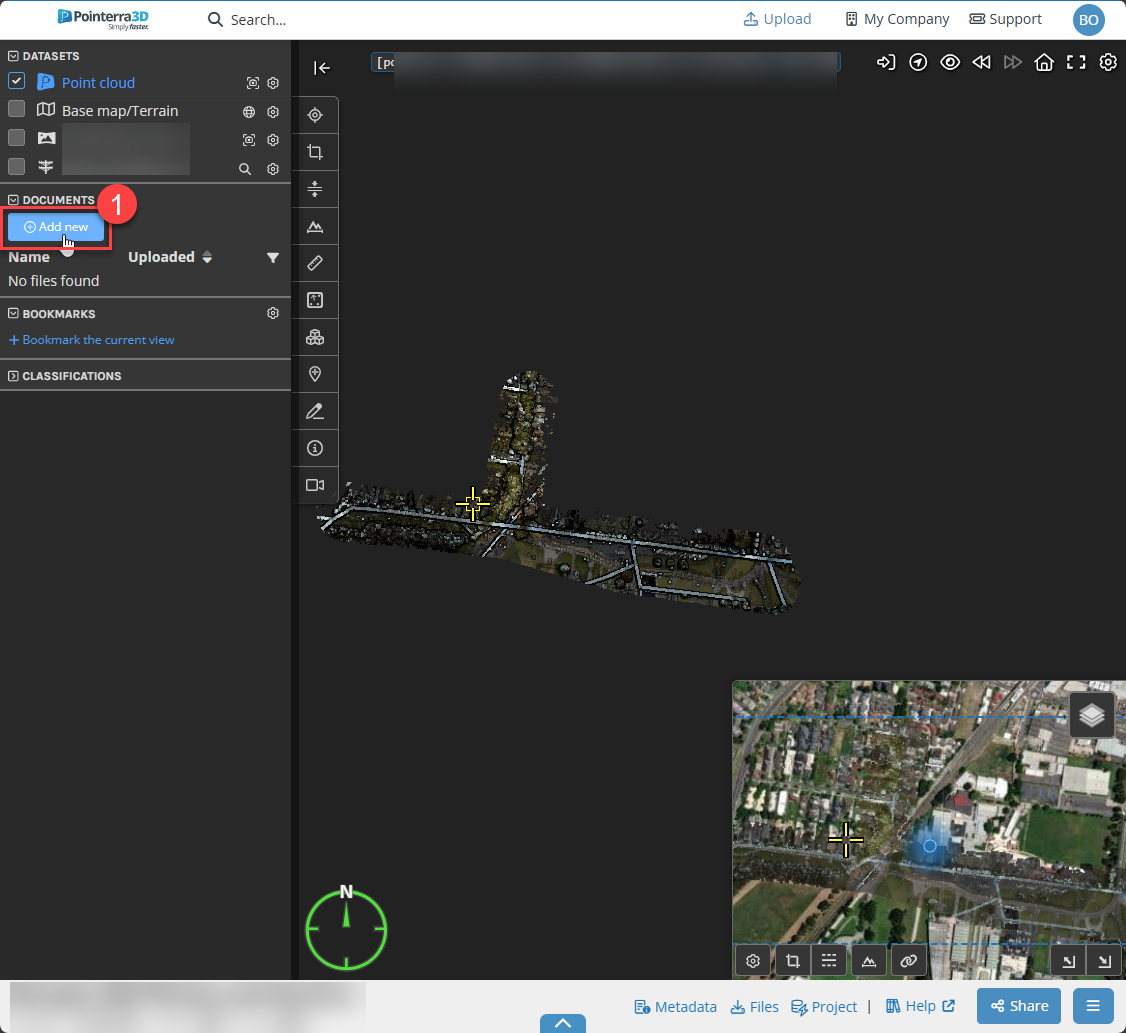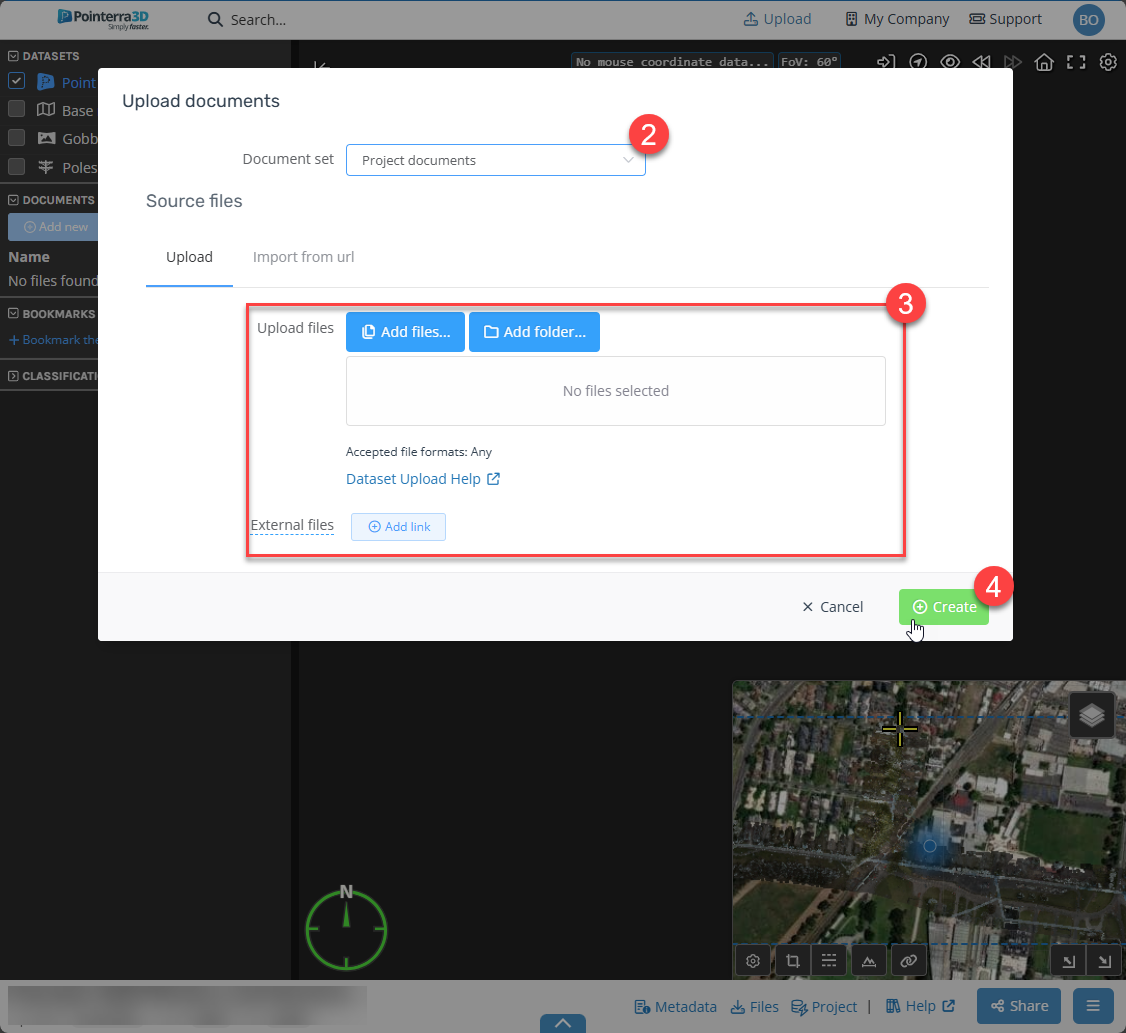
Uploading project documents within the viewer
Attaching Documents to a Project
You can attach documents to a project directly via the left-hand side datasets manager. To do this, follow these steps:
NOTE: Alternatively, you can also attach documents using the Project manager section below the viewer, as shown here.
-
Open the Documents Menu
Locate the Documents drop-down menu on the left-hand side.
-
Select Add New.
-
Choose a Document Set
Select the document set where you want the document to be stored.
By default, all documents are added to Project Documents (the only available set initially).
If you need to create a new document set, click here for guidance.
-
Upload Your Documents
Upload an individual file, a folder of files, or external files via a link.
-
Confirm and Save
-
Click Create to finalize the upload.
-