
Using lighting controls in the viewer
Lighting controls
Use the lighting controls to change how 3D models are lit in the viewer. These controls affect lighting-capable 3D model datasets only.
Opening The Controls
Open the lightbulb button in the viewer toolbar (top right). This is shown when the scene contains a dataset that supports 3D model lighting.

Lighting Mode
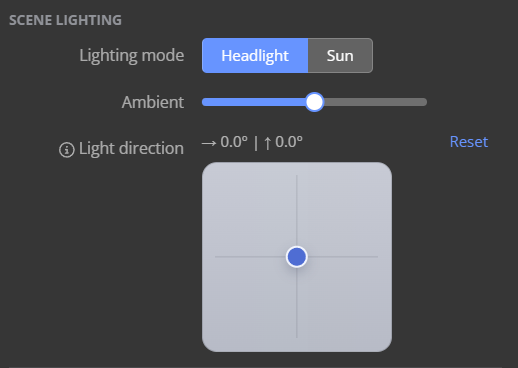
Headlight: You want the model to remain evenly readable while navigating. The light follows the camera. By default it shines from behind the camera toward the model.
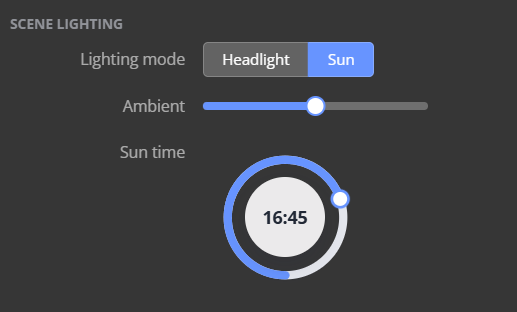
Sun: You want lighting that resembles real-world sunlight. The light direction is calculated from the selected sun time and the model location.
Ambient
Use Ambient to control the amount of general fill lighting on the model.
Lower values create stronger contrast and darker shaded areas.
Higher values brighten shaded areas and make model details easier to see.
Light Direction
This control is available in Headlight mode.
Drag the dot in the light direction pad to offset the light relative to the camera:
Centre position: light comes from behind the camera.
Left or right: light comes from the corresponding side of the camera view.
Up or down: light comes from above or below the camera view.
Use Reset to return the light to the centred headlight direction.
Sun Time
This control is available in Sun mode. The time is shown in 24-hour format in the local time zone. Lower sun angles generally produce longer shadows and stronger surface contrast, higher sun angles usually produce shorter shadows and more even lighting.
Points
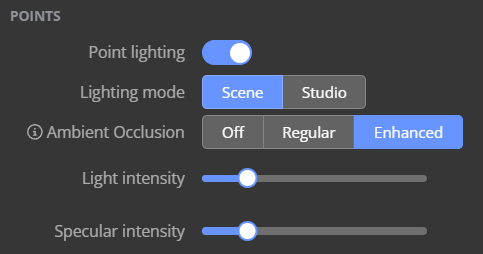
The points section controls point-specific lighting behaviour.
Lighting mode
Scene lighting uses the headlight or sun lighting that you have set up, studio lighting simulates lighting across point cloud surfaces to make shapes, depth, and fine details easier to see.
Light Intensity
Use Light intensity to control the strength of the main directional light on points.
Lower values soften the effect of the main light.
Higher values make lit faces brighter and shaded faces more distinct.
3D Models
The 3D models section controls model-specific lighting behaviour.
Light Intensity
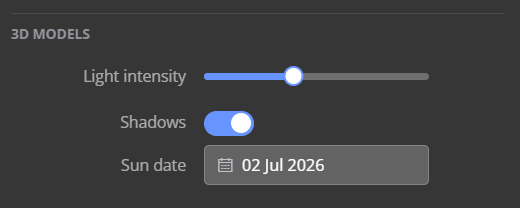
Use Light intensity to control the strength of the main directional light on 3D models.
Lower values soften the effect of the main light.
Higher values make lit faces brighter and shaded faces more distinct.
Shadows
This control is available only in Sun mode. Turn Shadows on to let 3D models cast and receive sun-based shadows.
Sun Date
This control is available when Sun mode and Shadows are enabled. Choose the date used with the sun time. The selected date changes the sun angle, so the same time of day can produce different lighting and shadow direction at different times of year.
Notes
Lighting changes are visual only, they do not modify the source model data.
Lighting changes are saved to bookmarks and to the scene defaults
The available controls depend on the current lighting mode.
If the lightbulb button or 3D model section is not visible, the current scene may not contain a lighting-capable 3D model dataset.