
How do I use the Data Browser?
The Data Browser is where you can find all your company's datasets and projects.
The Data Browser is split into four main sections from top to bottom:
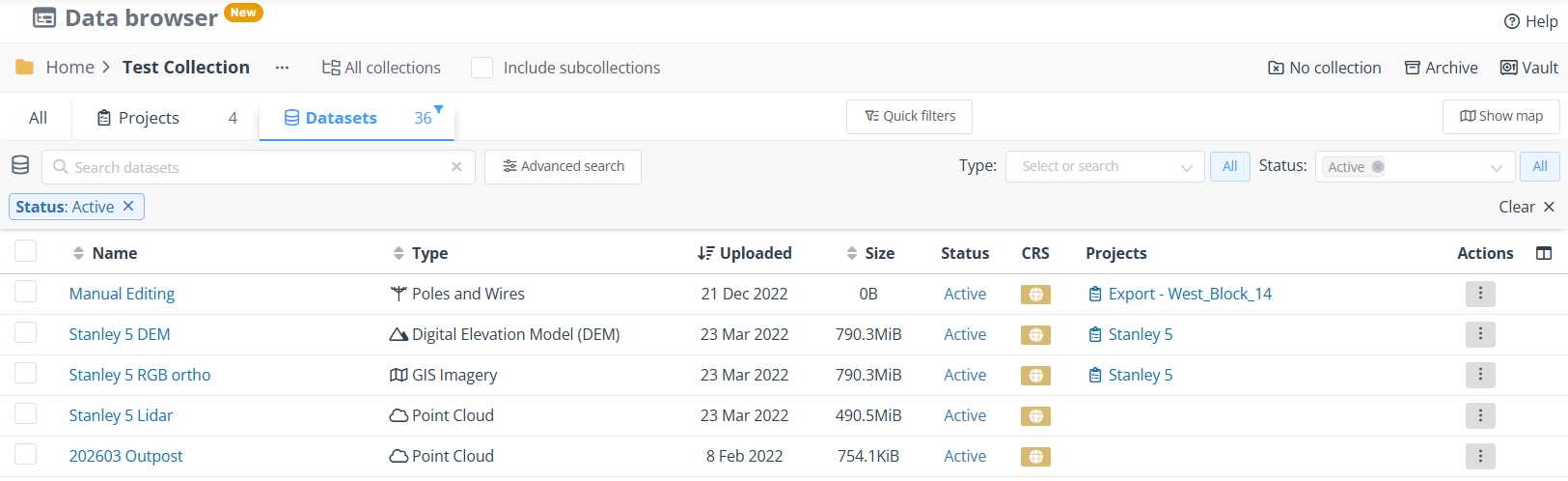
The top row is used for searching your data by location
The second row is for adjusting the page layout
The third row is for filtering
The rest of the page lists the results
Location

The path of your current location (collection) is shown on the left. Click on the collection name to change location.
Only projects and datasets inside this collection will be displayed. If you also want to see results from nested/child collections, toggle Include subcollections on.
If you want to view all data in your company, click the All collections button.
Additional locations, which are only visible to admin users, are shown on the right hand side:
No collection - Datasets may end up here if a dataset is unable to be put in a collection. Legacy note: All non-point cloud datasets will be placed here until an administrator migrates them into collections.
Archive - Datasets and projects that have been archived will be moved to this location. These will not be viewable but can easily be restored into an active collection.
Vault - Datasets that are long-term archived or vaulted will be moved here. These will not be viewable and must be reprocessed to be restored.
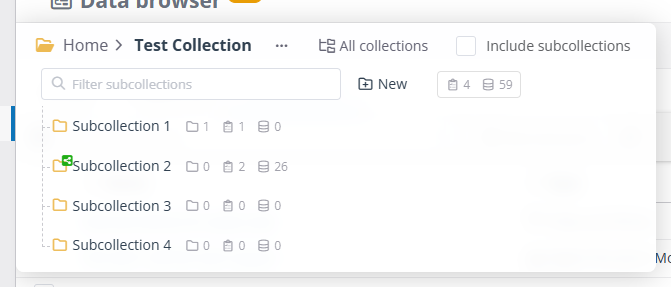
Clicking the yellow folder icon or the collection name opens the collection list. This popup window shows all of the collections directly under your current location. The number of subcollections, projects and datasets is shown to the right of each child collection. These totals may include items you don't have permission to browse.
Click the collection name again or anywhere outside it, to close this window.
Layout

There are three main layout tabs: Projects, Datasets and All.
Datasets are the raw data you upload, including point clouds, 3D models, imagery etc.
Projects group one or more datasets for viewing, editing and sharing.
The All tab shows both lists on one page.
Some users may only have access to view the Projects tab.
The total number of items is shown on the right of each tab and the blue funnel icon in the top right indicates you currently have a filter applied.
Quick filters provides several useful options that automatically set the layout and apply several filters at once, such as showing pending uploads or errored datasets.
Show map opens a 2D map view to the side and filters the results to the bounds of the map. Moving the map will refresh the list of datasets and projects displayed.
Filters

There are two filter bars, one for Datasets and one for Projects. They both work the same but have different filters.
The search box lets you search data by name and ID. The type and status filters are available by default for datasets, while all other filters can be found in the Advanced search panel. See the following articles for a full list of available filters for datasets and projects.
Applied filters are listed as blue tags underneath. They can be removed individually by clicking the X icon, or all at once with the Clear all button on the right. Click elsewhere on a filter tag to quickly edit its value. The filters are also saved in the page's URL, so you can bookmark a set of filters or share a pre-filtered link with other people.
Dataset/Project Lists

The columns shown in the lists of datasets and projects is configurable using the button in the top right of the table.
Clicking the column name will sort the results by that field.
Clicking on certain fields such as the type, status or CRS will apply a quick filter to show items with the same value.
If an item is in multiple collections or projects, a (+1) or (+2) etc. will be shown next to the field (as seen in the image below). Hover over the displayed value to show the full list of clickable links.
Clicking the three-dot ( ⋮ ) action menu button on a dataset or project allows you to perform actions on a single item, such as preview, archive and delete.
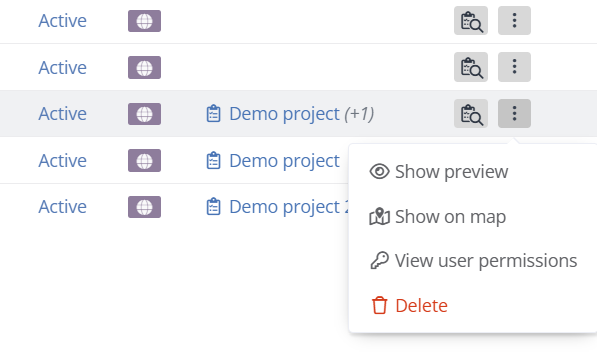
The View projects/datasets button next to the action menu will display all projects that contain the dataset, or all datasets in the project respectively. In the project "grid view" this button is found in the action menu instead. Use the browser back button, or the blue Return to dataset/project button in the layout bar to return to your previous position.
Clicking the dataset or project's name will take you to the detail view, while clicking the checkbox or elsewhere in the row will select the item.
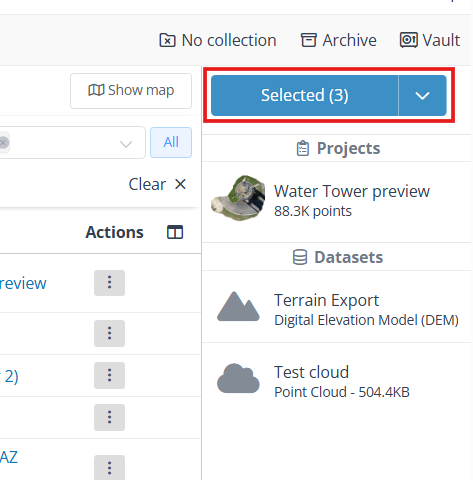
Selected items will be added to a list on the right of the page, allowing you to perform bulk actions such as deleting, moving collection, using the blue drop down button above the selection list.
Keyboard Shortcuts
C - Open the collection list
Esc - Close the collection list
A - Switch between all collections and the single collection view
Q - Go up a collection (go to parent)
T - Cycle through the layout tabs (All → Projects → Datasets)
X - Clear filters for current tab
M - Toggle the map
When searching for a collection, use the Up/Down arrows and/or Enter to select the result.
The browser navigation buttons can also be used to undo/redo filters.
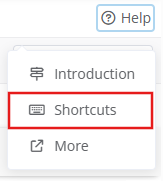
These shortcuts can be disabled from the help menu in the top right under Shortcuts:
FAQs
How do I find in progress dataset jobs?
In progress dataset jobs (including point clouds) can be found using the Pending uploads quick filter.
Where are my point clouds?
Point clouds used to be displayed separately, but have now joined the other datasets. Switch to the datasets tab and select "Point cloud" in the type filter box. Alternatively, use the Point clouds (Jobs) quick filter to show the same list as the old Jobs page.
Why can't I see any collections?
The collection list has been collapsed to take up less space. Click the yellow folder icon or the current collection name at the top of the page to show the full list.
Why can't I see any datasets?
Viewing datasets in the data browser requires the Manage datasets permission on the collection, which can be added by an administrator.
If you have access, but can't find your data, try using the All collections button to search your whole company.
Legacy note: If you only see point clouds, your other datasets may not have been migrated into collections yet. Ask an admin in your company to complete the migration. These datasets can still be found in the No collection section.
How do I add datasets to a project?
Select a single project and one or more datasets. Click Add datasets to project, from the blue drop down menu on the right. A maximum of 20 datasets can be added at a time.
How do I move a collection?
Collections cannot be moved directly. Instead, select all items in the collection and click Move to another collection from the blue drop down menu on the right. From here you can create a new collection in the target location.
Why can't I delete my collection?
Collections must be empty to be deleted. This includes subcollections, projects and datasets. If the collection appears to be empty, there may be other items in the collection that you do not have permission to view.
How can I share datasets with another company?
Datasets cannot be directly shared with another company, only projects can. Companies you have shared a collection with will only see the projects in that collection. To share datasets, simply add them to a project and share the project instead.