
Sharing a collection with another user's teams
Use a team sharing invitation when you want to share a collection with a team in another company but do not know the sharing ID for the external team. If you know the sharing ID, see Sharing a collection with a team from another company to share directly to that team.
A team sharing invitation is created for a single email address, and is only valid for a Pointerra account that matches that email address. When the recipient opens the invitation, they can choose which of their teams will be granted access to your collection. If they are a member of more than one company, you will need to review their selection before access is granted.
How to create an invitation
Open the collection and choose Share this collection:

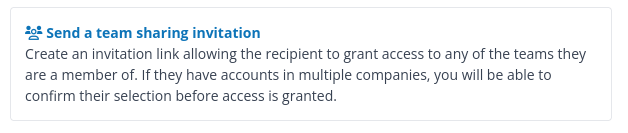
Select Send a team sharing invitation:
Enter the recipient's email address.
Select Create link. If you check the "Send invitation via email" box, an email containing the link and instructions will be sent automatically, otherwise you will have the opportunity to copy the invitation link once it has been created.
The invitation is valid for 7 days. You can find it under External team invitations, where you can copy the link again or revoke it before it is accepted.
Accepting an invitation and selecting teams
When opening an invitation link, the recipient will be prompted to select the teams that they wish to have access to the shared collection. Company administrators can choose from any team in their company while regular users can choose from teams they are a member of.
If the person opening the invitation is a member of more than one company, their team selection will be saved and sent back to you for confirmation.
After the invitation has been accepted
Once the teams have been selected (and approved if necessary), they will be granted permission to browse projects within the collection, and the collection will appear in the Shared with me section for team members.
The permissions can be viewed or modified in the future by navigating to the collection and selecting Edit collection properties. For help with managing collection permissions, see Using collections to manage your point clouds.
To stop sharing with the other team, remove all of their permissions from the collection.