Viewing Tree Detection Analytics
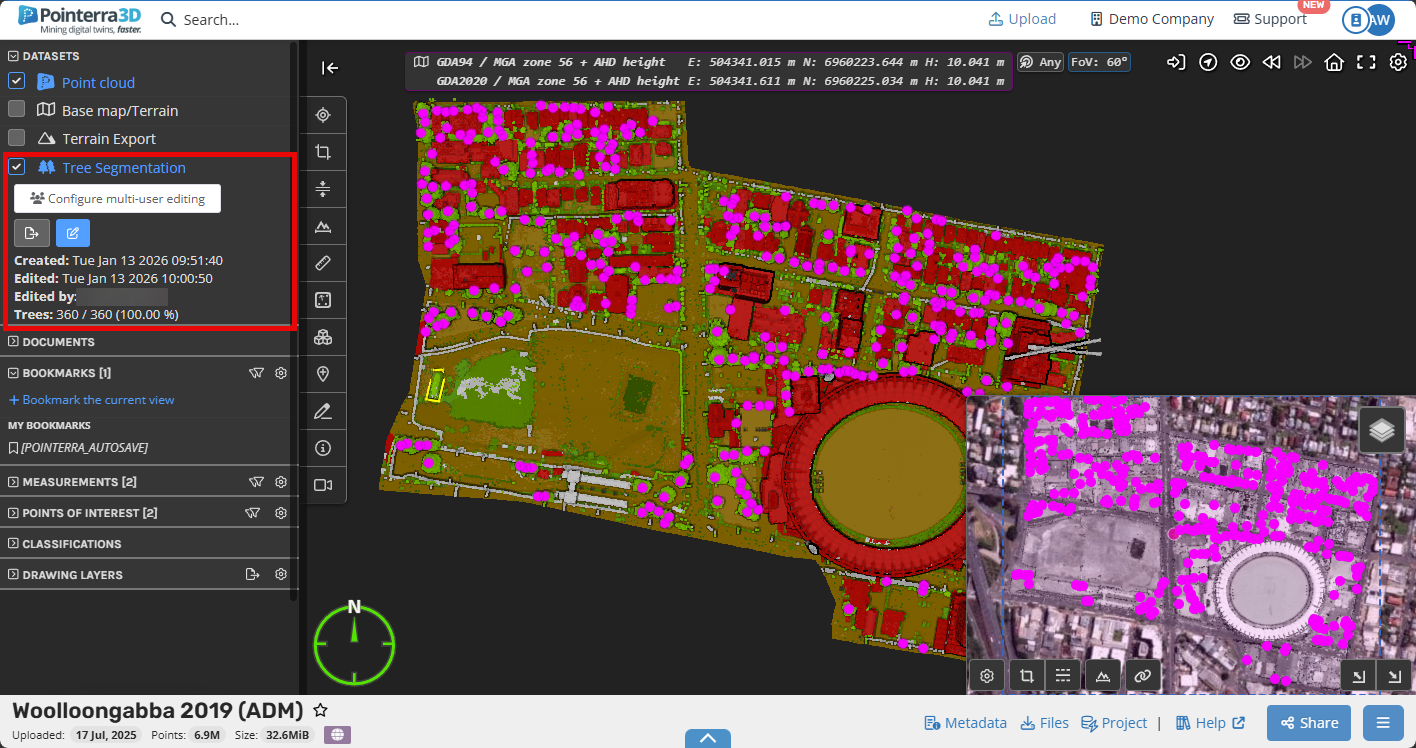
As mentioned in the guide for running the tree detection analytics, the analytics can be found on the left hand side tab as well as the detected trees can be seen in the viewer with the tree crown and trunk/base identified. As shown below:
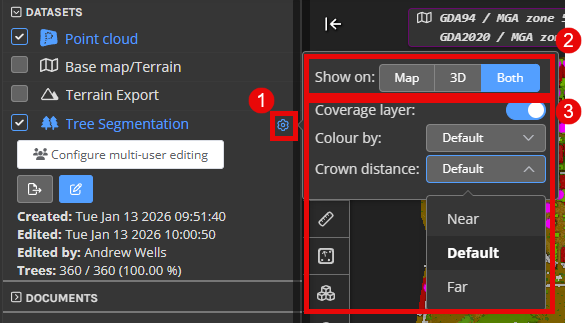
You can also alter the settings for viewing the tree detection, by selecting the gear icon next to the analytic (1). From here you can change what viewer you see the detected tree visuals in (Map, 3D or both) (2), as well as thecoverage layer, distance you can see each tree's crown from and the color of them (3).
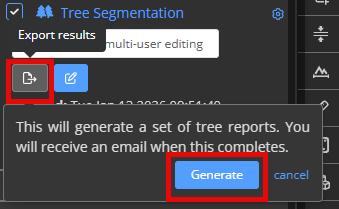
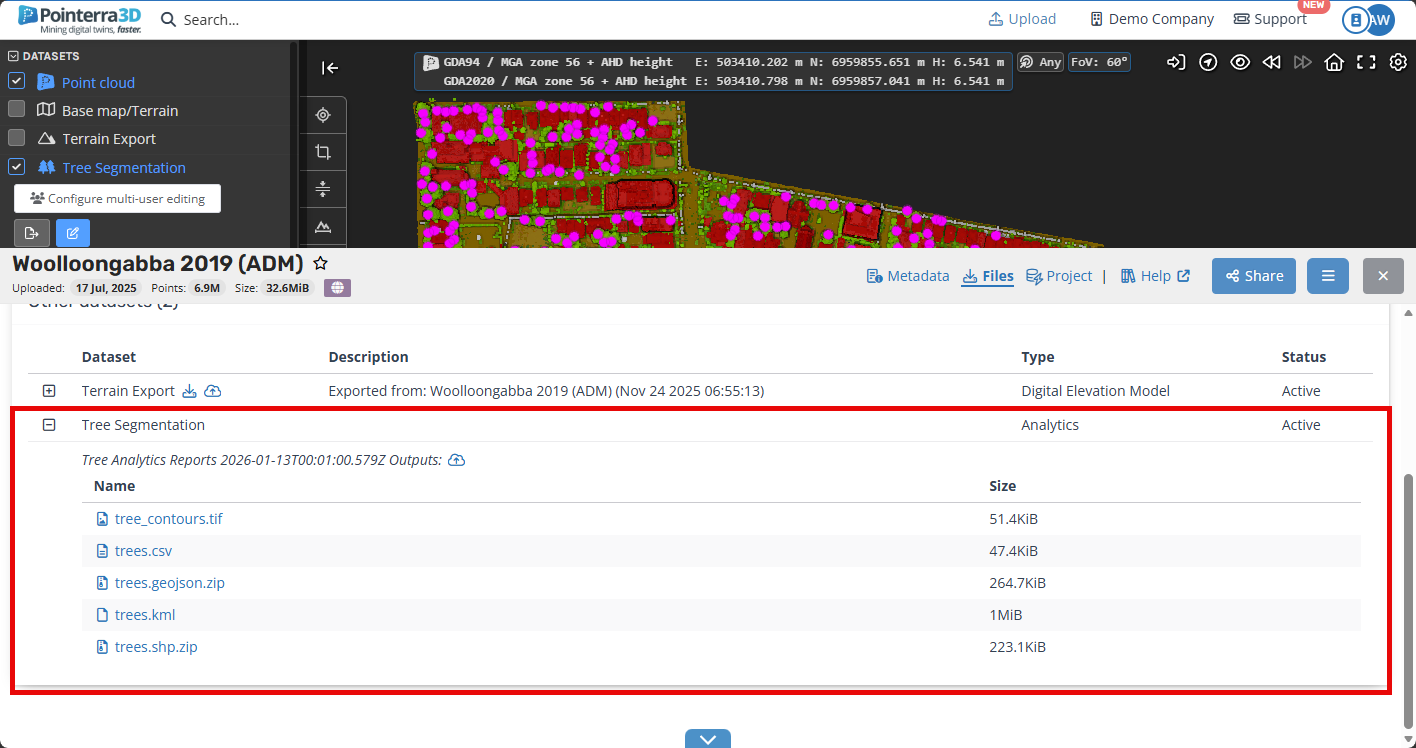
To export the results button will generate the following files from the Files section:
-
tree_contours.tif
32bit elevation geotiff of the tree polygons locations
-
trees.csv
Contains the Tree ID, Peak X, Y and Z, Centre X, Y and Z, radius, area and height.
-
trees.geojson zip
tree_centers.geojson
tree_contours.geojson
tree_peaks.geojson
trees.kml
-
trees.shp zip
tree_centers.shp
tree_contours.shp
tree_peaks.shp