How do I merge the contents of two projects?
This page is only applicable to companies using the new unified data management system (i.e. if you have the Data Browser tab on your company page). If you do not have access to this yet, please see this article for instructions on merging legacy point clouds. Merging two legacy projects together will also use this legacy merge even if you have the Data Browser.
The Data Browser allows you to merge the contents of one or more projects into an existing project or a new combined project. This can also be used to duplicate the contents of a single project into a new one.
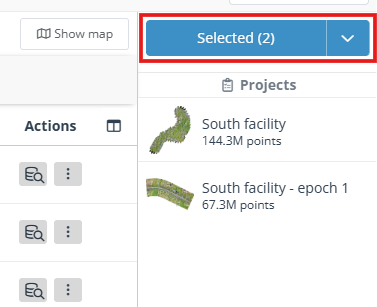
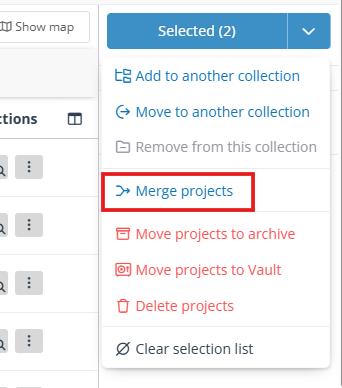
To merge projects, first select two or more projects in the Data Browser, and click the blue action menu on the right. In this menu, click Merge projects. If you just want to add a single dataset into a project, use the Add datasets to project action instead.
Merging into a new project
This will add the contents of all the selected projects into a single new project.
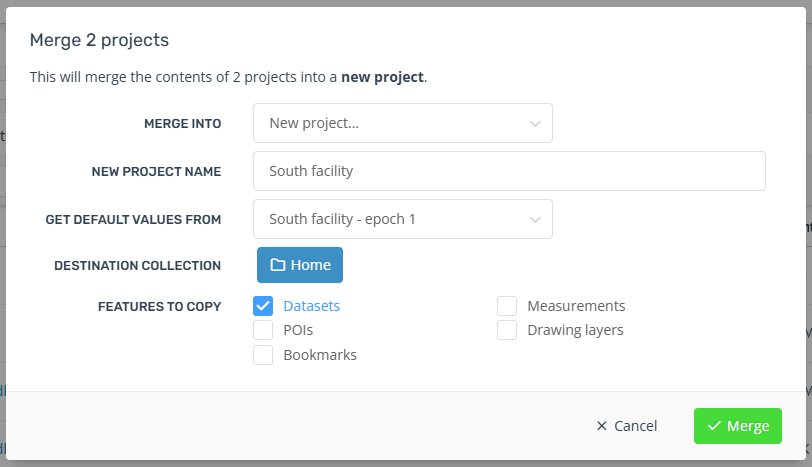
Keep "Merge into" set as "New project..."
Enter a new name to distinguish it from the input projects. Remaining metadata such as the description, attribution, and CRS will all be copied from the project selected in "Get default values from". These can all be changed after the project is created.
You must have the same permissions on the destination collection as you have on the input projects.
Merging into an existing project
This will add the contents of the selected projects into one of the selected projects.
Set "Merge into" to the target project. This project will be modified, so you must have edit permissions to do this. Additionally, whatever permissions you have on the input projects, you must also have on the target project.
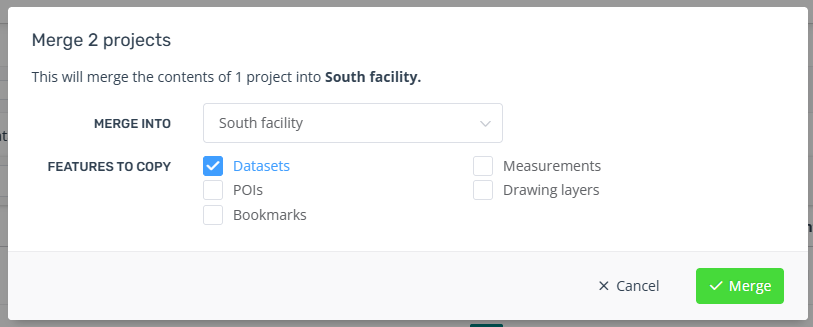
Features that can be copied
The following features can be copied to the target project:
Datasets (including point clouds and analytics)
POIs
Bookmarks
Measurements
Drawing layers
These features will still remain in their original projects and once merged, the projects act independently. You can add/remove POIs, datasets, etc. or even delete one of the projects without affecting the others.
Copying datasets will not copy any files, and will not increase your company's data usage. This is no different from adding the datasets into the target project individually. Thus, if you delete a dataset, it will be removed from all the projects it was in.
If you just want to add a subset of datasets, then use the Add datasets to project action in the Data Browser instead, or remove them after the merge.
Classifications
If you have run classification analytics on the input projects, any classification versions will be automatically copied to the target project if you choose to copy the datasets. If you do not copy the datasets, no classifications will be added.
If there are multiple point clouds in the target project, the classification version will not be immediately visible. Next to the classification version selector in the viewer, click the green plus button to add a new version. From here you can make a composite classification version by selecting the classifications to use for each point cloud in the project.