How do I add or remove datasets from a project?
This page is only applicable to companies using the new unified data management system (i.e. if you have the Data Browser tab on your company page).
Projects are the primary method of viewing, sharing and editing datasets. Adding a dataset to a project makes it visible to anyone who can view that project, regardless of what collection the dataset is in.
There are several ways to add datasets to a project:
From the Data Browser
From the project's viewer page
Using the Data Browser
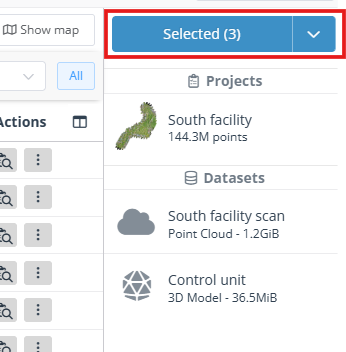
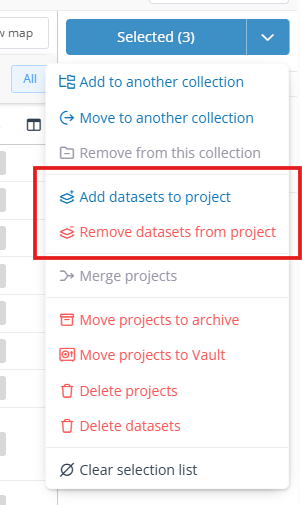
Select one project and up to 20 datasets in the Data Browser, and they will be listed on the right side of the page. From the blue action menu on the right, click Add datasets to project. Datasets can also be removed from a project with the Remove datasets from project action.
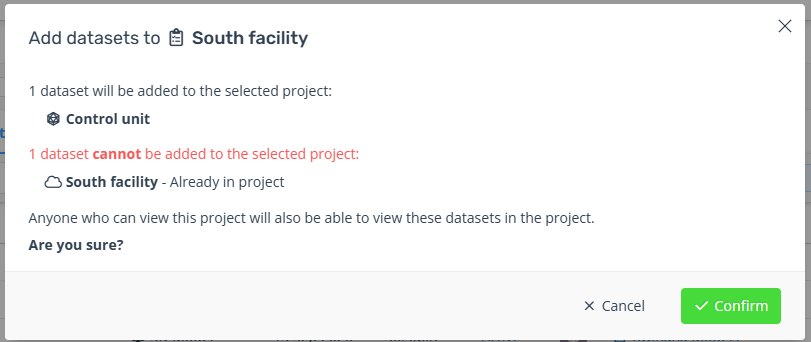
A confirmation popup will be displayed, showing you which datasets will be added. Some datasets cannot be added to the project if they have an incompatible datum mode or are already in the project. These datasets will be skipped if you continue. Point cloud datasets also cannot be added to legacy projects.
Using the project's viewer page
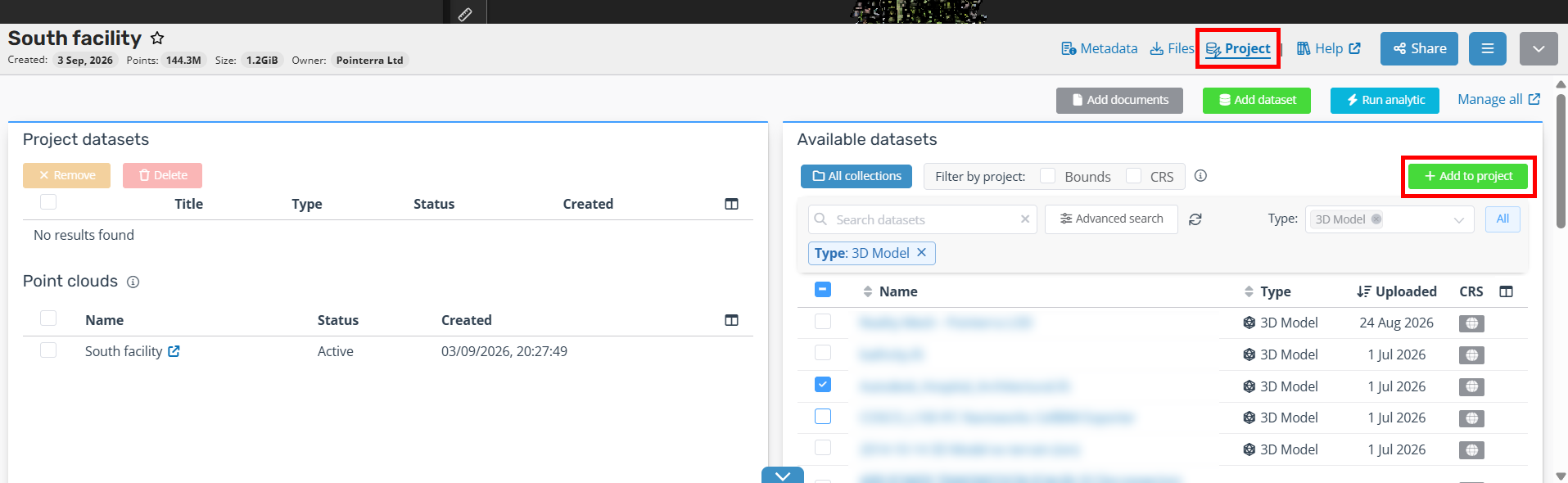
You can also add and remove datasets from the project's 3D viewer page. Click the Project tab on the details panel at the bottom of the page. The left side will list all the datasets that are currently in the project, while the right side will display all the datasets you have permission to browse and add to the project.
This list of available datasets has the same filters as the Data Browser, as well as additional filters to find datasets within the project bounds or with the same CRS. The list also excludes datasets that have failed or have an incompatible datum mode. Point clouds will not be listed for legacy projects.
Select a dataset from the right-hand list and use the Add to project button to add it. To remove a dataset, select the dataset on the left and click Remove. You can also upload new datasets directly into the project.
Reload the page to update the viewer. Any datasets that are still importing or have failed will not be shown in the 3D viewer.