
How do I bulk update the attributes of several projects/datasets?
This operation is currently only available to company administrators.
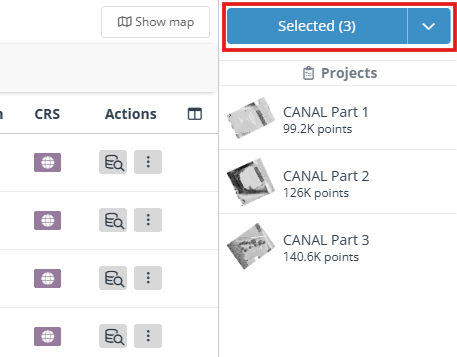
In the Data Browser, select up to 100 datasets and projects and click Edit attributes from the blue action menu on the right.
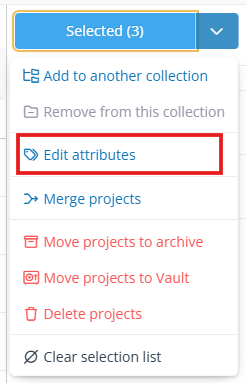
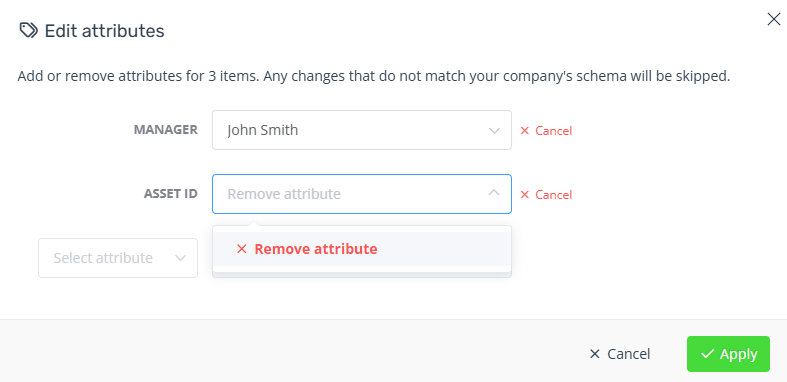
To assign new values, first select the attribute from the left dropdown, then select a value to assign. If an item already has this attribute assigned, its existing value will be replaced with the new value.
To remove values, you also need to select the attribute from the left dropdown, but then select Remove attribute from the value dropdown. Items that don't have this attribute will be skipped.
As this is a bulk operation, the list of attributes and values shown in this dialog may not be valid for all selected items. However, changes will only be applied if they are valid and match your company's schema. Invalid assignments will be skipped and listed in the dialog after clicking Apply.
If you only need to edit the attributes of a single dataset, go to its details page and click the green Edit button in the top-right of the metadata section. Similarly for projects, you can click the grey Edit button in the top-right of the metadata tab, or use the Edit properties action from the ⋮ three-dot menu in the Data Browser.