How do I configure an attribute schema for my company?
Attributes allow you to add your own custom fields to projects and datasets in a structured manner. Company administrators can configure which fields can be added, which are required, who can view particular values, etc.
If you have this feature enabled and are an admin of your company, you can edit your schema from the Configuration → Attributes tab, or visit https://app.pointerra.io/company/config/attributes/.
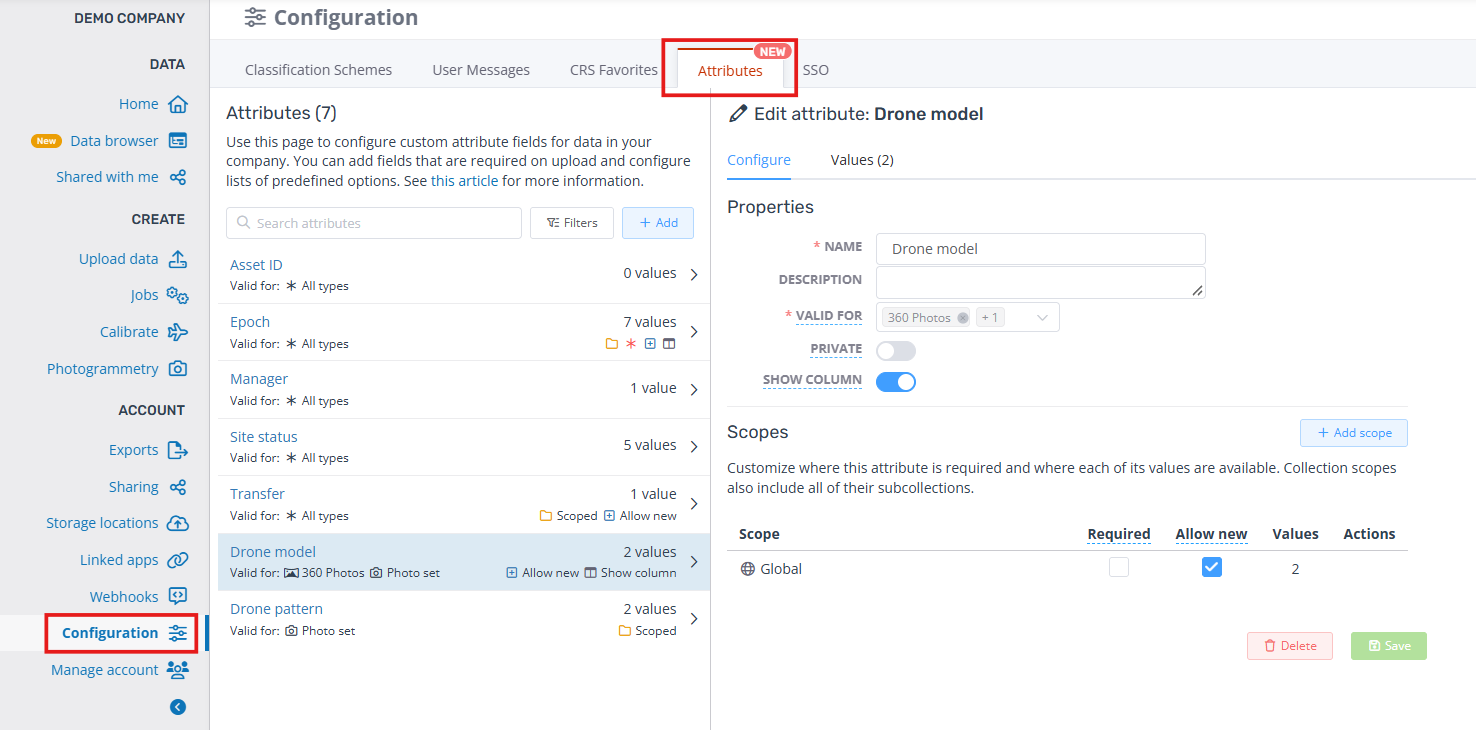
The left panel lists the attributes in your schema. Click an attribute in this list to select it, or click the Add button at the top to create a new one.
The right panel shows the selected attribute and has two tabs. The Configure tab lets you edit the name, description and permissions of the attribute, while the Values tab shows the list of available values for the attribute.
Attribute Configuration
Name is the displayed name/key of the attribute and must be unique. Renaming an attribute will also change its name on any existing data.
Description is an optional field and will display as a tooltip on the upload form.
Valid for dictates what data types the attribute is applicable to. For example, a "Drone model" attribute is only applicable to photosets and 360 panoramas. This attribute will not be shown or selectable when uploading other data types. Changing this will not remove the attribute from existing data. You can find datasets and projects with invalid attributes using the Data Browser filters.
Private means this attribute will be hidden from users outside your company, and will not be transferred when another company takes ownership of data you have shared.
Show column displays an additional column in the Data Browser for this attribute. You may also need to enable it from the Configure columns button in the top-right of the table. It will only be visible when viewing relevant data types. All attributes can still be filtered in the Data Browser regardless of this option.
Required means this attribute must be entered when creating or editing data of a relevant type.
Allow new means users can enter new values for this attribute rather than selecting from the preconfigured list. New values will be added to the list for other users to use.
Important: Deleting an attribute will remove it from all datasets and projects it is currently assigned to. This cannot be undone.
Attribute Scopes
By default, attributes have a single scope which applies to your whole company. i.e. If an attribute is set as required, it will be required no matter where you are uploading. If you want finer control, you can add additional attribute scopes.
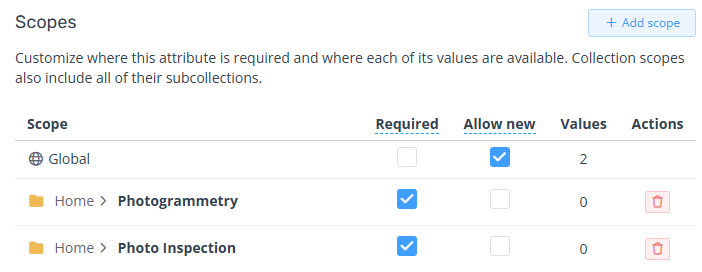
Scopes allow you to change the permissions depending on where the data is located in your company. You can make an attribute required only under a certain collection, or make particular values only selectable when uploading to a certain collection. For example, if you have multiple subcontractors, each with a separate collection they can upload to, you can set up a different list of values for each of them to use, and they won't see each other's values.
Please note that scoping only controls the assignment of attributes, not the viewing of existing attached attributes. If you move a project into another collection, the metadata and attributes will not be changed and users who can view that collection will see all of the project's attributes.
The Required option of collection scopes overrides the global scope, regardless of whether it is enabled or disabled. For example, if the global scope is not required, but the collection scope is, then the attribute is still required under that collection. Conversely, if the global scope is required, but the collection scope is not, then the attribute is not required in that collection.
For Allow new, users can create new values if either the global scope or the applicable collection scope allows it. New values are added only to scopes where Allow new is enabled. For example, if the global scope does not allow new values, but the collection scope does, users can add new values only in that collection, and new values will be added to the collection scope. Similarly, if the global scope allows new values, but the collection scope doesn't, users can still add new values but they will be added to the global scope.
Collection scopes automatically apply to all their subcollections, so you cannot create create overlapping scopes. For example, you cannot create scopes for both Home > Level 1 and Home > Level 1 > Level 2, the former will apply to both.
You also cannot create a scope for your Home collection. Use the global scope instead.
If someone deletes a collection that is being used as an attribute scope, the scope will still remain intact. You can choose to assign another collection or delete the scope.
Values
The Values tab lists all of the existing values available for the selected attribute. Here you can add, rename and delete values as well as change their scope.
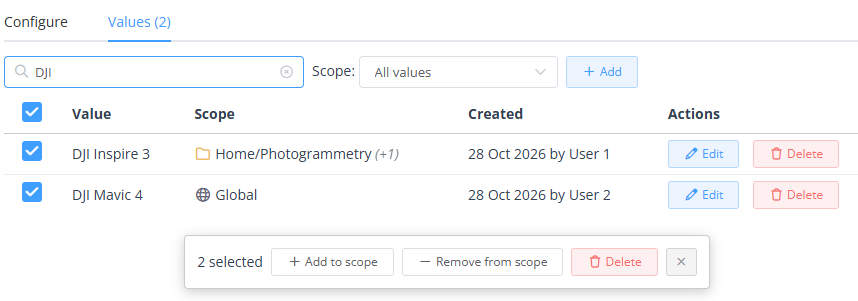
Renaming a value will also update it for all data it is currently assigned to.
Assigning a value to a scope means it will only be listed as an option when uploading/editing within that collection or its subcollections. Values can also be assigned to multiple scopes, indicated by a (+1), (+2) etc. If a value has no assigned scope, it will not be selectable anywhere but will still be visible on existing data.
Changing a value's scope does not remove it from any existing data or change its visibility. You can find datasets and projects with invalid attributes using the Data Browser filters.
Use the left column to select multiple values to update their scope or delete them in bulk. You can also use shift-click to select a range of values.
Important: Deleting a value will remove it from all datasets and projects it is currently assigned to. This cannot be undone.
More Information
For filtering data by attributes, see these articles for datasets and projects.
For bulk assigning attributes to your data, see this article.
For transferring attributes to/from other companies, see this article.